UI Introduction
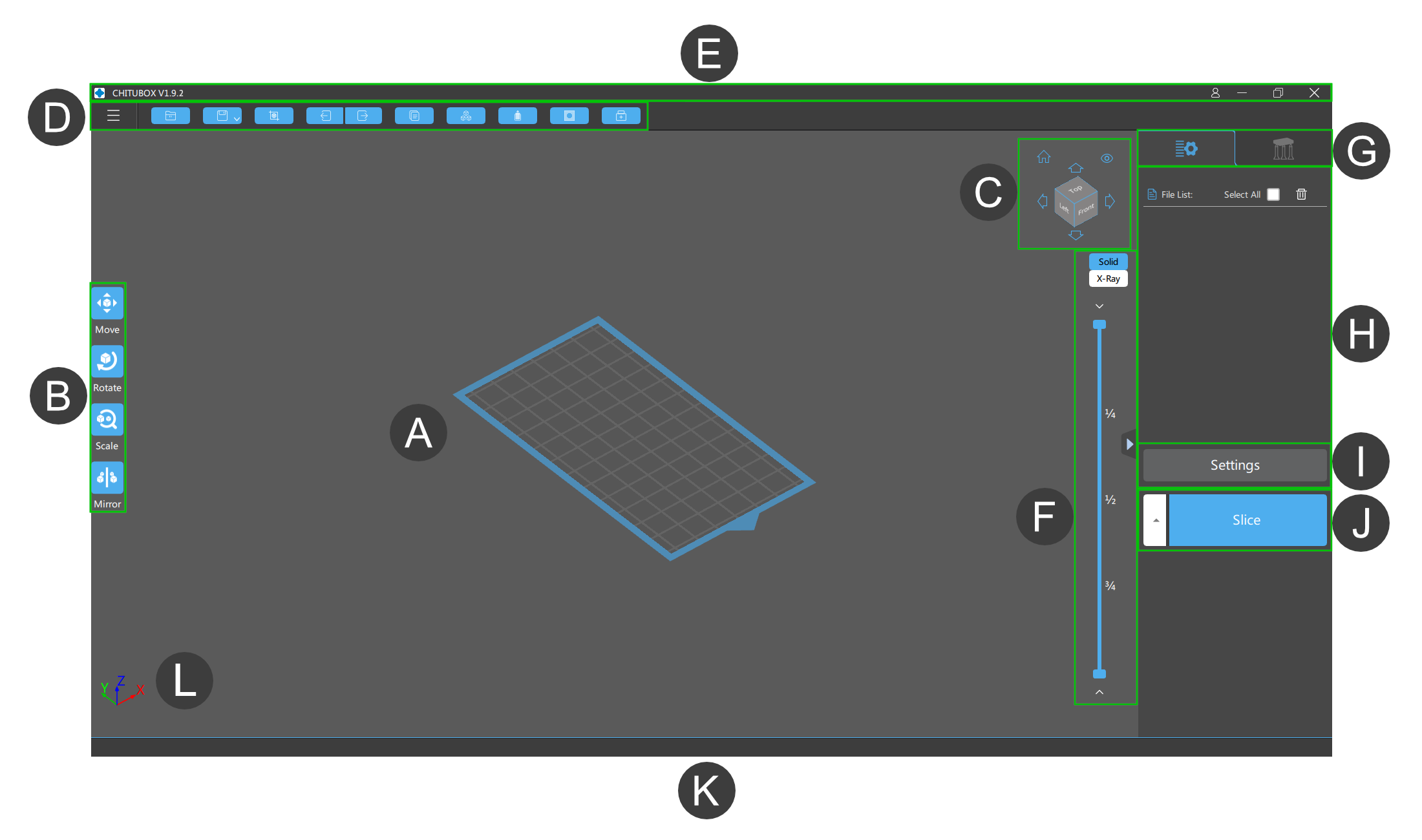

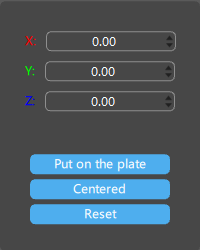
Move: move the selected models to the set position.
-
Put on the plate: use the lowest point of the model as the reference point, and put the selected model on the build plate.
-
Centered: center the selected model on the printing platform.
-
Reset: reset the placement position of the selected model.
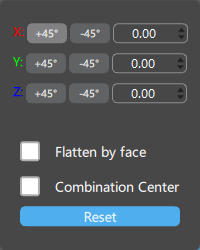
Rotate: rotate the selected models according to the set angles.
-
Flatten by face: use the selected surface on the model as the reference surface, and lay the model against the printing platform according to the reference surface.
-
Combination center: take the center of the selected combination of multiple models as the center of rotation.
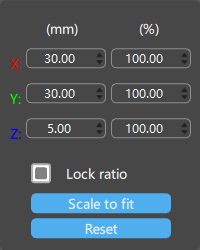
Scale: scales the selected models according to the set size or scale.
-
Lock ratio: lock the ratio of the selected model's X-axis, Y-axis and Z-axis for scaling.
-
Scale to fit: scale the selected model to fit the printing platform.
-
Reset: reset the model size.
Mirror: mirror the selected models.
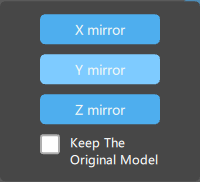
- Keep the original model: If enabled, the original model will be kept.
Switch between perspective view or orthogonal view. You can click the

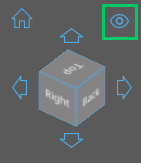

This panel allow you to select/unselect (all) files, display/hide printing size, and delete files.
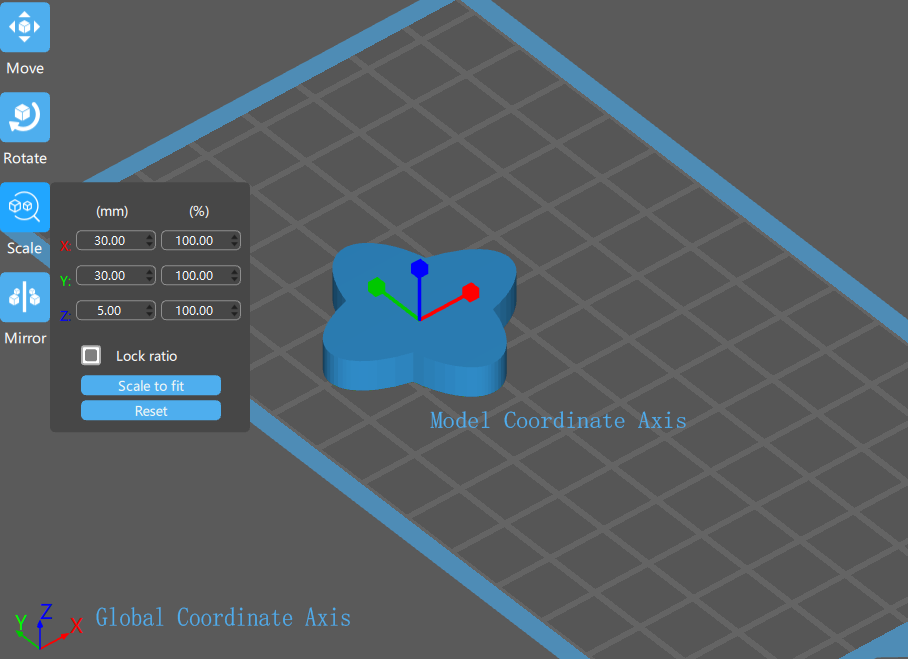
Among the Global Axis: red is the X-axis; green is the Y-axis; blue is the Z-axis.
Right-click and drag the blank area to adjust the viewing angle of the work area.
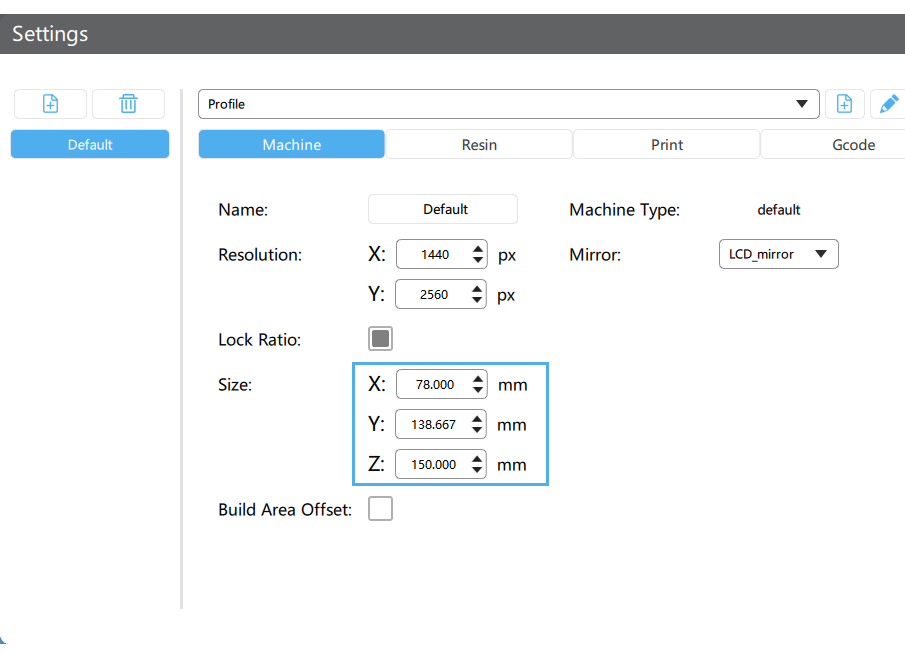
As shown below, the reference coordinate axis corresponding to X/Y/Z in the slice setting is the print platform coordinate axis (Global Coordinate, displayed in the bottom left of the screen), used to adjust the maximum print size of the X, Y, and Z-axis of the printing platform (For built-in printers, please use the default size; for those non-built-in printers, please fill in dimension parameters strictly according to the specifications provided by the printer manufacturer).
The size of the model recorded in the zoom panel is the size corresponding to the model's coordinate axis (Local Coordinate), not the size corresponding to the platform's coordinate axis (Global Coordinate). The coordinate axis rotates synchronously when the model is rotated, so the rotation operation will not affect the size recorded in the zoom panel.